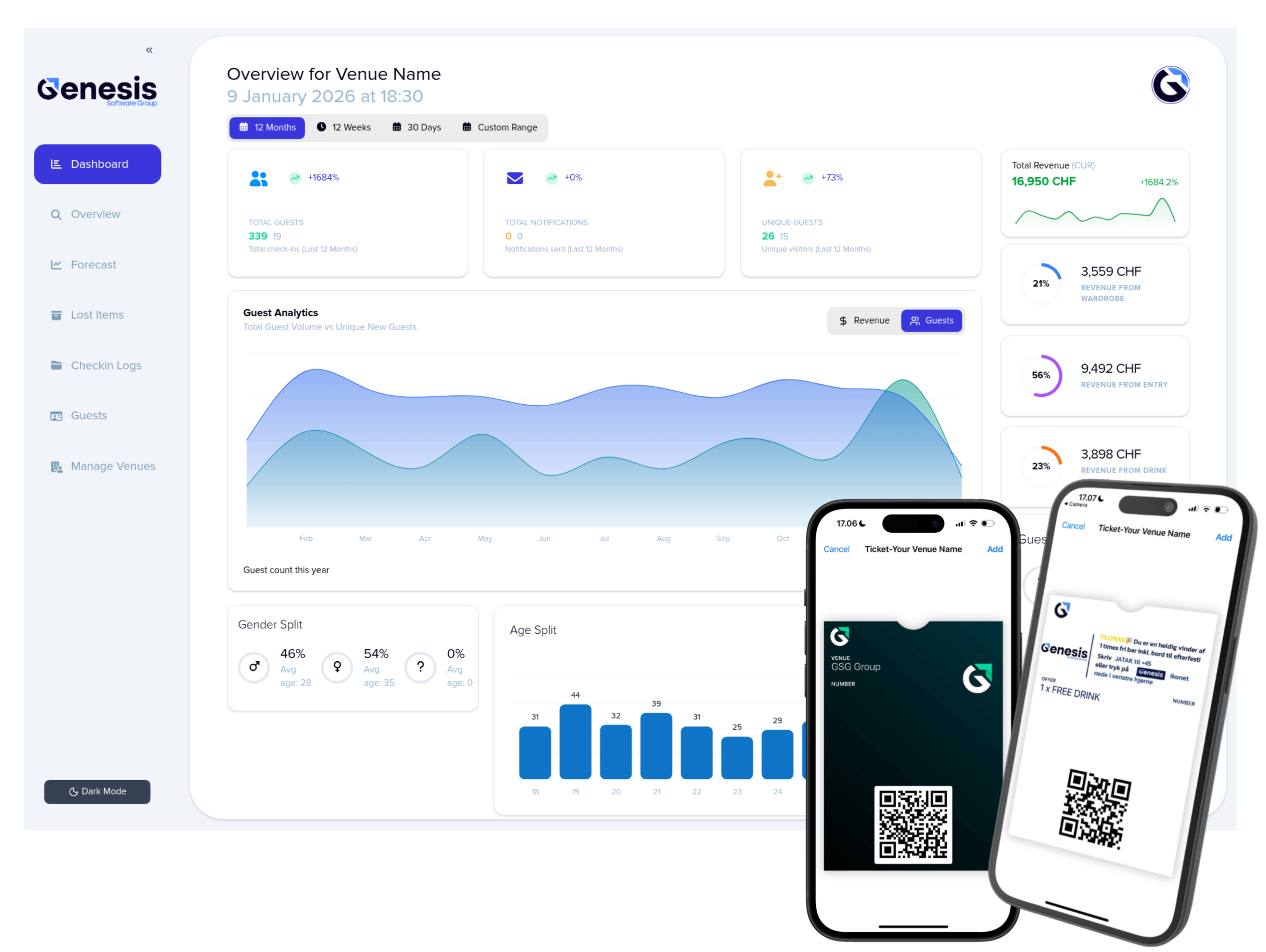

Google Wallet
Google Wallet provides a smooth and reliable way to store digital tickets, offering fast access, smart updates, and a familiar experience for Android users.
Step 1: Design Your Ticket
Start by creating your ticket design directly in the Wardrobe Manager dashboard. Customize colors, layout, icons, and branding to match your venue’s visual identity. This design will define how your ticket appears inside Google Wallet.
Step 2: Set the Design as Active
Once you’re satisfied with the design, mark it as Active. All newly generated tickets will immediately use this updated layout for a consistent guest experience.
Step 3: Customize the Greeting Message
Inside the dashboard, you can personalize the arrival greeting that appears when guests open or access their ticket. This can include friendly messages, quick guidance, or branded copy.
Step 4: Customize the Goodbye Message
Create a unique departure message shown when guests check out. Use it for appreciation, reminders, or promotional follow-ups.
Step 5: Configure Smart Notifications (Android)
Google Wallet supports contextual notifications such as ticket updates, check-in confirmations, and important event changes. Customize these notifications within the dashboard to ensure guests receive timely and relevant updates.
Step 6: Create Workflow Automations to Update Ticket Design
Using the automation tools under Triggers, you
can dynamically update ticket designs in real time.
Examples:
- Display a special icon when a lost item is detected
- Highlight limited-time promotions
-
Change colors or banners for VIP guests
This turns each Google Wallet ticket into a dynamic, customizable display surface.