Apple Wallet
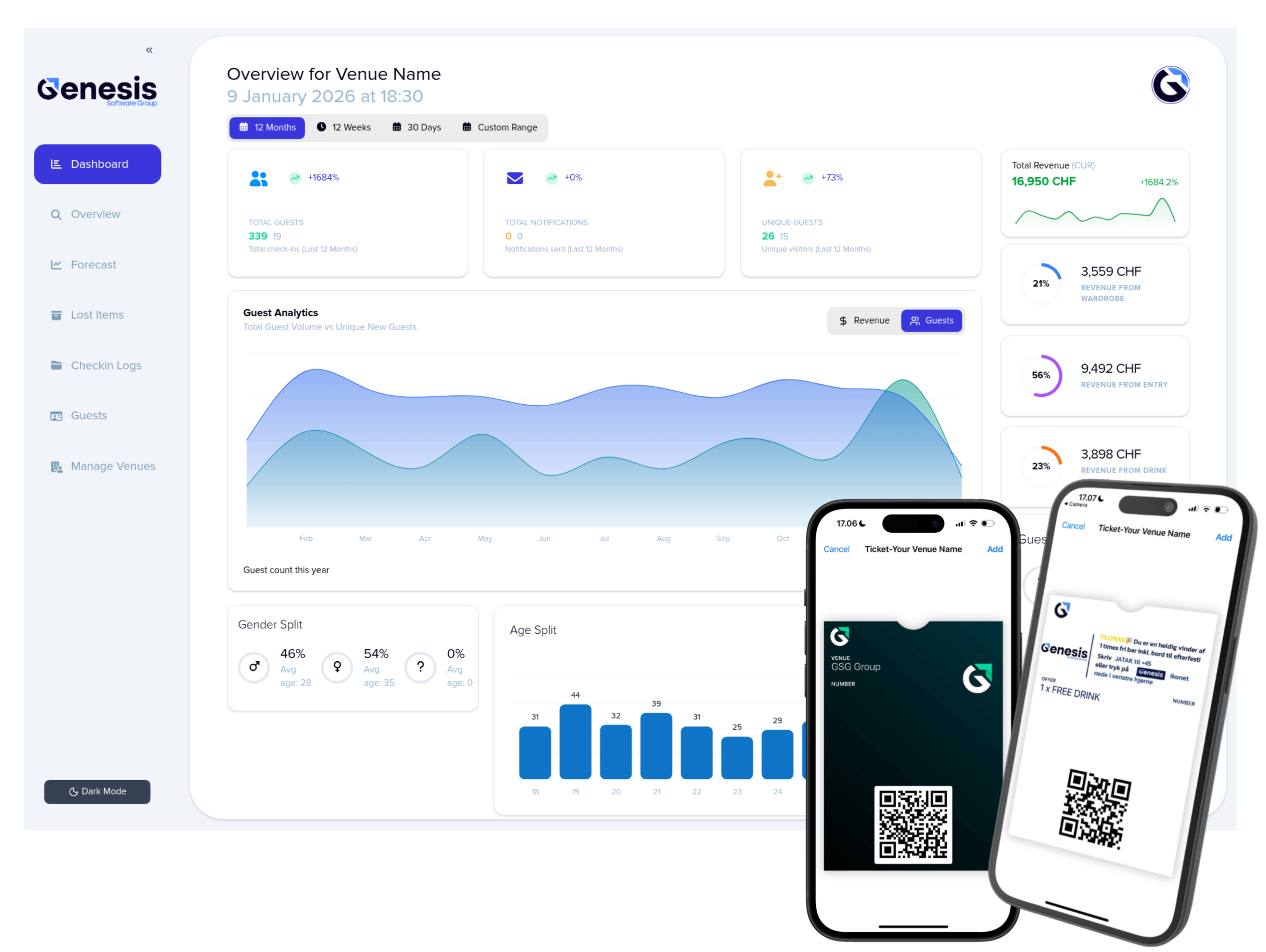
Apple Wallet offers a seamless, familiar ticket experience - complete with exclusive features like smart notifications and persistent home-screen access.
Step 1: Design Your Ticket
Start by logging into your Wardrobe Manager dashboard and navigating to the Ticket Designer. Here, you can fully customize the look and feel of your ticket—add your branding, event styles, colors, and visual elements to match your venue or a special event.
Step 2: Set the Design as Active
Once your ticket design is ready, simply mark it as Active. From that moment on, all newly created guest tickets will automatically use your chosen design—no extra steps required.
Step 3: Customize the Greeting Message
In the Notification Settings, personalize the message guests receive when they check in. This greeting can include friendly text, venue-specific details, or special welcomes tailored to events or promotions.
Step 4: Customize the Goodbye Message
You can also customize the checkout message guests receive when leaving your venue. Use this space to thank them, promote upcoming events, or encourage return visits.
Step 5: Enable Persistent Notifications
If you want guests to have instant one-tap access to their
ticket at all times, enable
Persistent Notifications.
These special
notifications stay pinned on the guest's home or lock
screen as long as their ticket is active - just like an airport
boarding pass.
Important: Persistent notifications are proximity-based (1km+), so make sure your venue’s location is set accurately in the dashboard to trigger them correctly.
Step 6: Use Smart Notifications
Apple Wallet notifications are on by default,
meaning guests automatically receive helpful alerts unless they
explicitly opt out.
Each venue’s notifications are
sandboxed, so if a guest disables notifications
from another venue, it will not affect your ability to
send yours. You always maintain your own notification channel.
Step 7: Create Automated Design Updates
Under Triggers, you can set up automated
workflows that change the ticket design dynamically.
Examples
include:
- Highlighting a lost item with a bold warning banner
- Adding a promotional design to advertise upcoming events
- Displaying personalized call-to-actions based on guest behavior
This turns the ticket into a live, dynamic billboard that updates itself automatically.